
Qr Code Generator for Business Cards
A QR code on your business card lets people save your details to their phone in one tap instead of typing them in. Fill in your contact details, choose vCard (most compatible) or the more compact MeCard, and this generator builds the QR code right in your browser. It shows how dense the code is, the smallest size that prints reliably and a preview on a standard business card.
- Free to use
- No sign-up
- Runs in your browser
Business card QR code generator
Business Card Print Kit
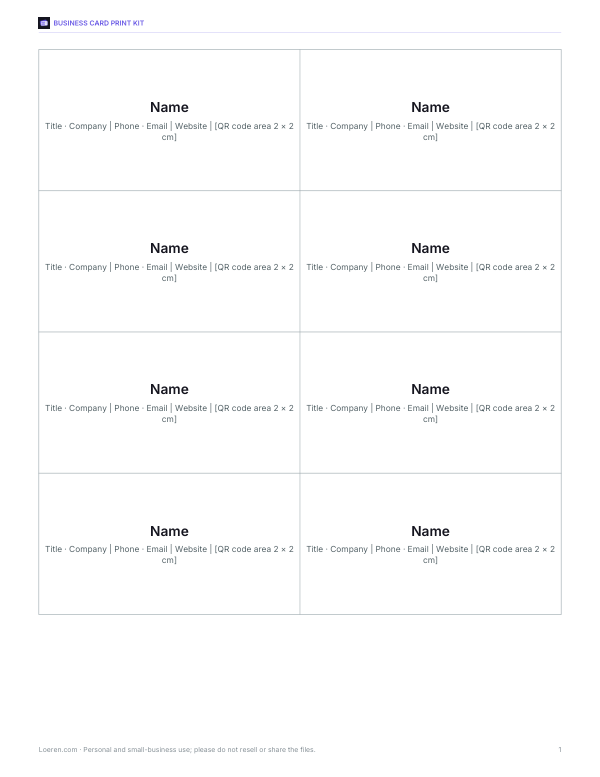
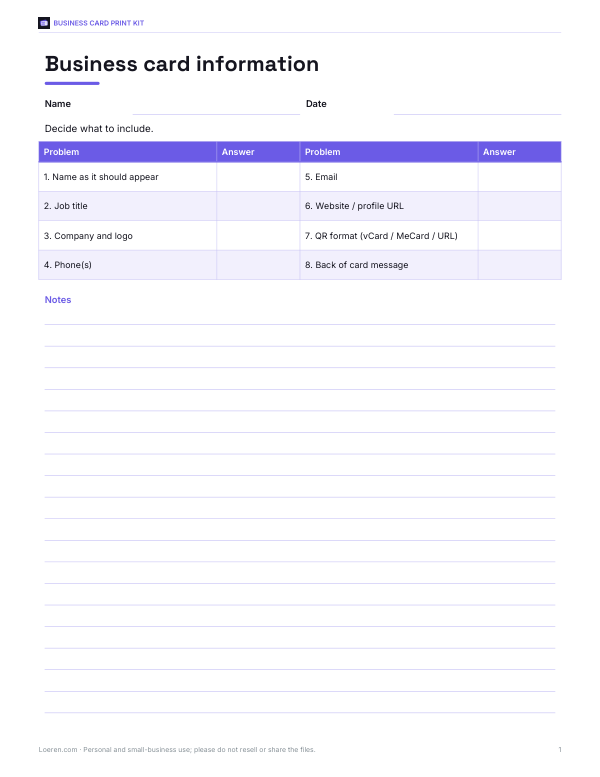
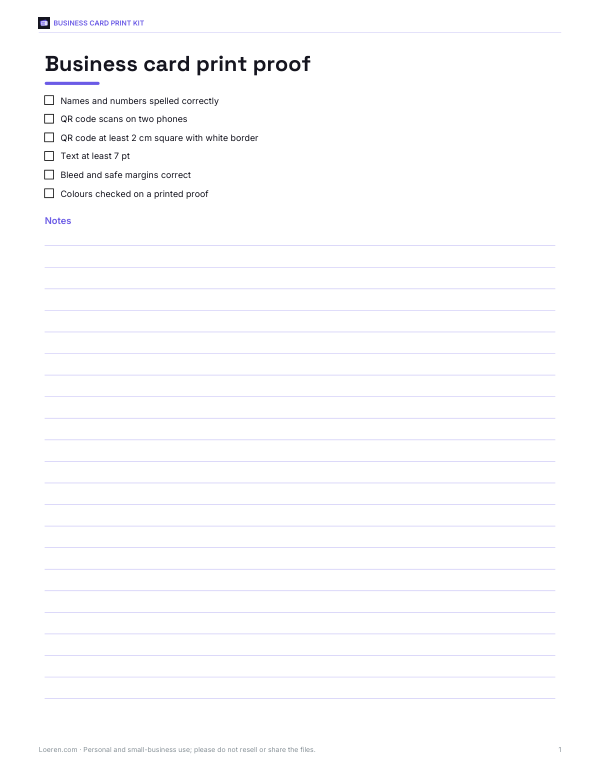
Printable business card kit: business card layout templates (10 per page) with QR code space, a card information worksheet, a print proof checklist and a networking contacts log.
- Card templates (PDF)
- Card worksheet (PDF, DOCX)
- Proof checklist (PDF, DOCX)
- Contacts log (XLSX)
Formats: PDF, DOCX, XLSX. Instant download after payment (link valid 72 hours, up to 5 downloads). AI-assisted: the templates were drafted with AI help and reviewed and laid out before publishing.
$5.00 USD, one-time 4 files · about $1.25 each
- Instant download
- 7-day refund
- Secure checkout by Stripe
7-day money-back guarantee. Full refund within 7 days of purchase, even after you download.
Free sample: Business Card Templates (PDF, 46 KB)
Full refund within 7 days — see the refund policy and license.
Free printables
Single sheets you can print right now, no sign-up. The full pack adds every sheet in one download plus the editable files.
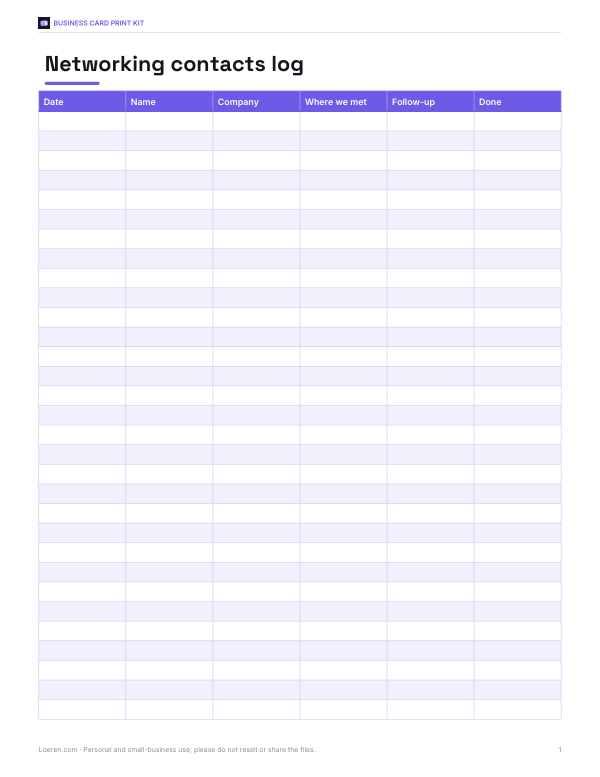 Printable Networking Contacts Log
Why put a QR code on a business card?
Typing a name, phone number and email from a card into a phone is slow and error-prone, and many cards end up in a drawer. A contact QR code lets someone point their phone camera at the card and save your details in one step — correctly spelled. It is especially useful at conferences, trade shows and networking events where people collect dozens of cards.
vCard, MeCard or URL?
| Format | What it stores | Pros and cons |
|---|---|---|
| vCard 3.0 | Name, title, company, phones, email, website, address | Most widely supported by iPhone and Android cameras; produces a denser code |
| MeCard | Name, company, phones, email, website, address | Shorter, so the code is simpler; slightly less widely supported and no job title field |
| URL | A link to your website or online profile | Smallest code and always up to date, but the person must then save your details themselves |
How to use the generator
- Fill in the details you want to share — leave optional fields blank to keep the code simple.
- Choose vCard for compatibility, MeCard for a smaller code, or a URL.
- Keep error correction at M unless you plan to place a logo over the code (use H).
- Check the version and suggested minimum print size.
- Download SVG for your printer or designer, or PNG for documents; download a .vcf file for email signatures.
- Test the printed card with at least two different phones.
The QR code is generated entirely in your browser from your details — nothing is uploaded or stored, and the code doesn’t depend on any online service, so it never expires.
Worked example
Jordan Lee enters name, title, company, mobile, email and website and chooses vCard with error correction M. The contact data is about 190 characters, which needs a version 10 QR code of 57 × 57 modules. With the white border that is 65 modules; at a comfortable 0.4 mm per module the code should be printed at least about 26 mm (just over 1 inch) square — it still fits in the corner of a standard 3.5 × 2 inch card. Switching to MeCard shortens the data to about 110 characters and a version 7 code of 45 × 45 modules, which scans more easily and can print at about 21 mm.
Printing QR codes reliably
- Keep a white border (quiet zone) of at least four modules around the code.
- Use dark colours on a light background with strong contrast — avoid light-on-dark.
- Don’t shrink below about 2 cm (0.8 in) for a business card, and go larger for dense codes.
- Print on matte stock; glossy lamination can cause glare.
- Avoid placing the code over a fold, embossing or foil.
- Always test-scan the final printed proof.
Error correction levels
| Level | Recovers about | Use when |
|---|---|---|
| L | 7% damage | Smallest code; clean, flat surfaces |
| M | 15% damage | Business cards and most print |
| Q | 25% damage | Rough surfaces or outdoor use |
| H | 30% damage | Placing a small logo in the centre |
Higher levels make the code denser. If you add a logo in the middle, keep it under about 20% of the code’s area and test it carefully.
Privacy
Anyone who scans the code gets exactly the details you put in it, so include only what you are happy to share publicly. Consider a work phone and email rather than personal ones. Because the code is static, update and reprint it if your details change — or use a URL to a profile page you can edit.
Static vs dynamic QR codes
The codes made here are static: your details are stored in the pattern itself, so they work offline and forever, but can’t be changed after printing. Some online services offer dynamic codes that point to a short link you can edit later — convenient, but they depend on that service staying online and may track scans. For a business card, a static vCard is usually the simplest and most private choice.
Other uses
The same contact QR code works on name badges, email signatures (as an image), shop counters, flyers and the back of product packaging. For events, put the code on a badge so new contacts can save your details during a conversation.
Frequently asked questions
How do I make a QR code for my business card?
Enter your contact details, choose vCard, and download the QR code as SVG or PNG.
Will iPhones and Android phones read it?
Yes, vCard QR codes open as a contact in most phone camera apps.
Does the QR code expire?
No, it contains your details directly and needs no online service.
What size should the QR code be on a business card?
At least about 2 cm (0.8 in) square; denser codes need to be larger.
Can I change the colour?
Yes, choose a dark colour with strong contrast on a light background.
Are my details uploaded?
No, the code is created in your browser.
Can I add a logo in the middle?
Use error correction H, keep the logo small, and always test-scan the result.
What is the difference between vCard and MeCard?
Both store contact details; vCard is more widely supported, MeCard is shorter.
Should I include my home address?
Usually no — share only details you’re happy to give anyone who scans the card.
Can I make a QR code for my website instead?
Yes, choose the URL option.